

How to order a Business SIP trunk

Our ordering process – simple, quick and with transparent pricing
Easybell’s ordering process guides you through three simple steps to find the tariff that best suits your needs.
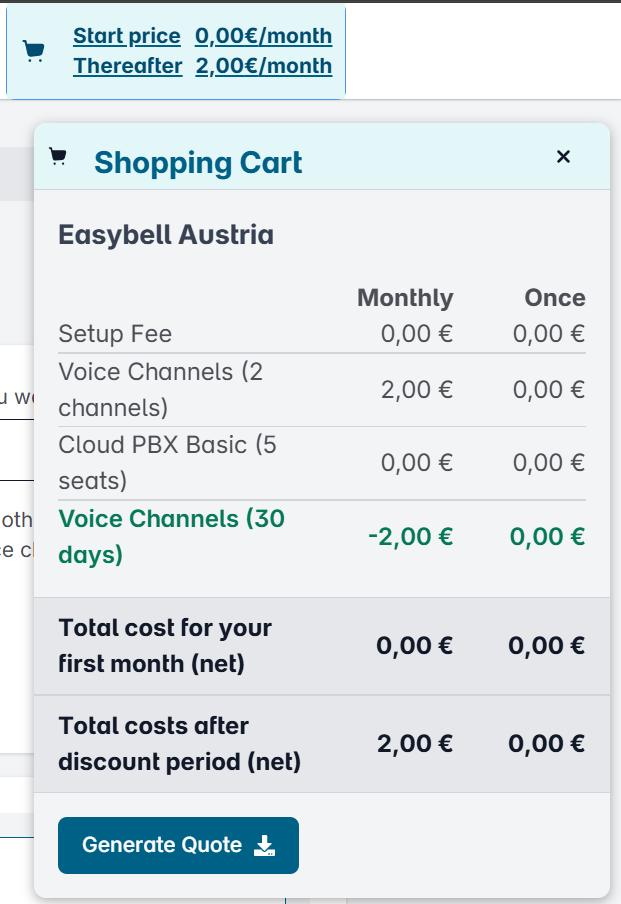
The shopping basket at the top of the screen shows you the monthly and one-off charges at all times, so you retain full control. Clicking on the shopping basket will give you a detailed breakdown of all product components and costs.
The best bit: if you don’t want to finalise your order just yet, you can download your configuration as a quote in PDF format. In this document, you’ll also find a link that allows you to continue with your order later.
Although the individual steps are self-explanatory, we’d like to briefly outline them here once more:
Step 1: Set up your chosen tariff
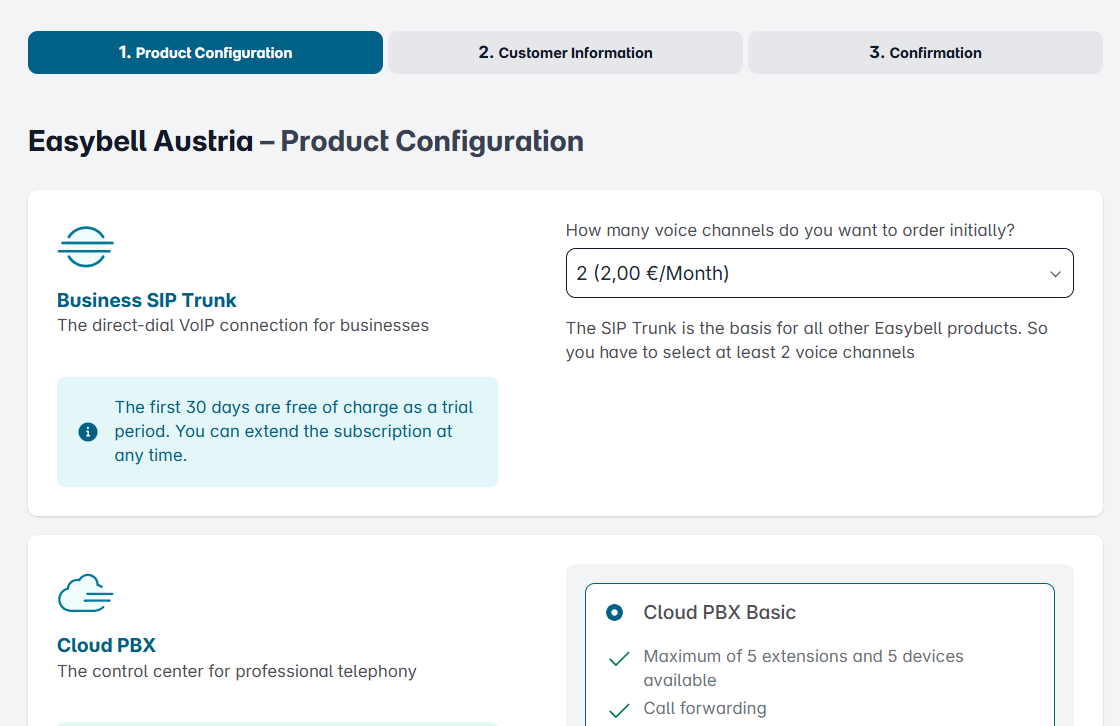
On the left-hand side you will find the tariff components and on the right the available options for each. Any additional costs are shown directly next to the option. Your shopping basket is always updated to reflect your current selection.
Select the desired number of voice channels for your Business SIP Trunk here.
Additional options
- Cloud PBX: The Easybell Cloud PBX Basic is included free of charge for life with every Business SIP Trunk. If you require a wider range of features, you can upgrade to the Cloud PBX Classic or Pro. You can find an overview of the benefits of these options on our product page.
- Teams Connector: The Teams Connector integrates affordable Easybell telephony into Microsoft Teams and can be booked as an optional extra.
- Fair Flat minute packages: Optional minute packages (national or international) for cheaper calls; minute-based billing is also available.
- Billing intervals: Choose between billing by the minute (included) or by the second.
Step 2: Enter your customer details
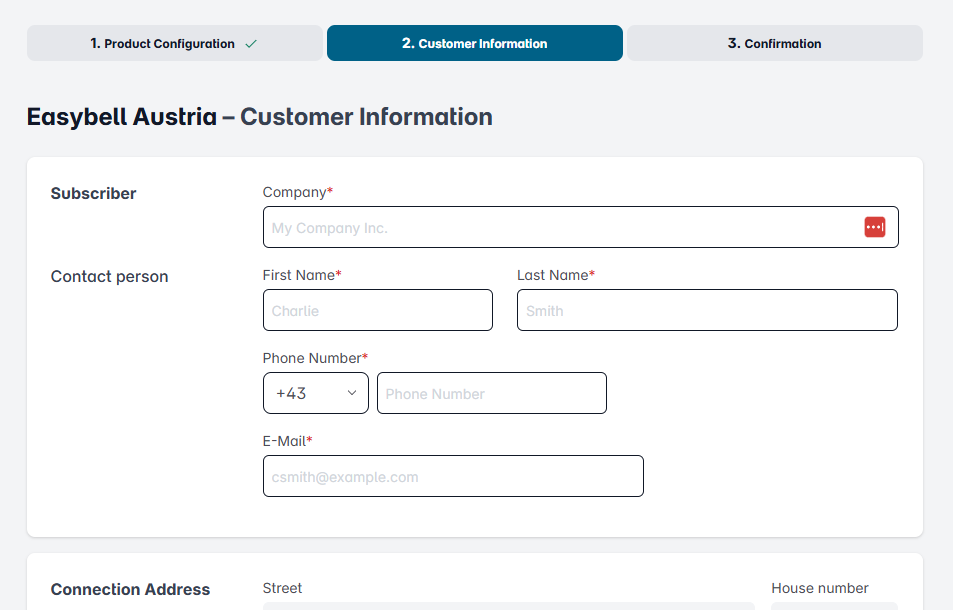
In this step, we will collect the necessary account holder details and your payment details. You can choose between payment by direct debit or by invoice.
Step 3: Please check all the details!
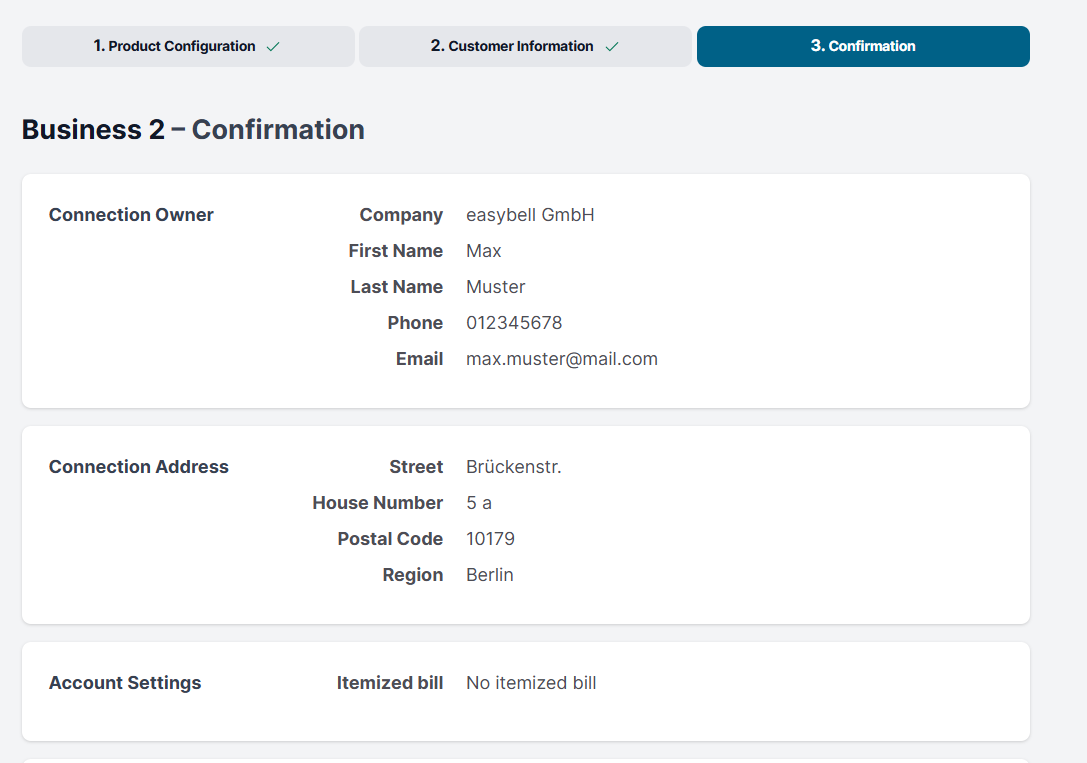
In the final step, you can check all the details and the product you have put together once more. Don’t forget that you can expand the details in the order summary!
You can also download your selection so that you can, for example, print out the quote or send it to someone. To do this, click the “Generate quote” button.
If you are happy with your details and would like to order the selected product, click on “Place a binding order”.
Last but not least: Complete the ordering process
We will then send an email containing a link to the email address you provided. Once you click on this link, your order will be successfully completed and we will take care of the rest.
If you do not receive an email, please check your spam folder.
Please note: The activation process cannot continue without verification!
Here’s what happens next after you’ve placed your order:
Once you have successfully completed your order, we will keep you regularly updated on its progress by email. You will also receive an email containing the details you need to log in to your personal customer portal, my.easybell. There, you can view the latest information about your order.
Request number porting
If you wish, you can request the transfer of your existing phone numbers (“number porting”) to my.easybell from this point onwards. To do so, follow the steps in our help article “Number porting: Transferring your phone number to Easybell”. You can find further information on the topic of “number porting” in our knowledge base.
Verifizierung der Anschlussadresse
As the Business SIP Trunk is linked to a business address, we require written proof that your company has its registered office at the desired connection address. An official document showing both the company name specified in the order and the connection address is sufficient for this purpose.
We accept any of the following documents as proof:
- A recent bill from an electricity, gas, water or other utility company
- A current contract or recent bill for a telecommunications connection from another provider (e.g. telephone or internet connection)
- Company registration (extract from the Companies Register or Commercial Register)
- A current tenancy agreement A recent bill from the local authority
Further information on this can be found in “Verify connection address”.