

Managing and Using Contacts and Click2Dial in the Cloud PBX
The "Contacts" feature allows you to create a centralized phone book as well as personal contacts for individual users of the Cloud PBX. For the centralized phone book, this is done using the Cloud PBX’s administrator account, and for personal contacts, it is done using the OfficeDesk accounts of the extensions.
The “Click2Dial” feature is also available for contacts you’ve created. This allows you to call your existing contacts with just one click.
View Contacts
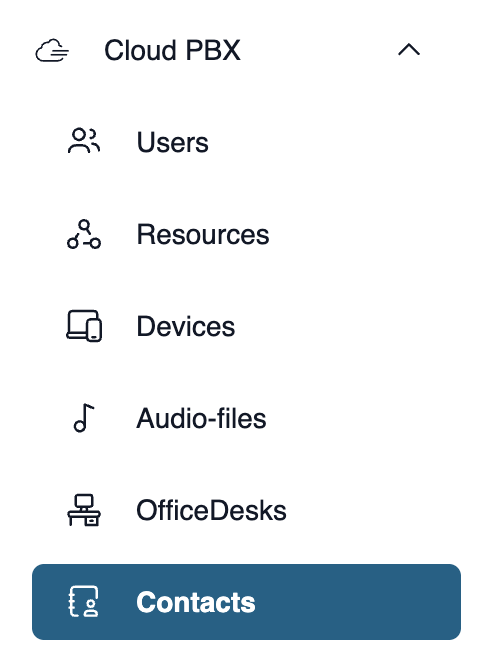
To use the contacts, first log in to my.easybell with your administrator credentials.
Now, in the page navigation of your Cloud PBX, open the “Contacts” menu item. This will take you to the overview of the entries you’ve created.

Manage Contacts / Phone Book
You'll see an overview of the contacts you've created so far.
Search and Filter Contacts
In the search bar, you can search by first and last name, phone numbers, or parts of phone numbers. The more specific the search term, the more precisely the contacts will be filtered. In addition, the entries can be sorted by specific criteria using the arrows in the headers.
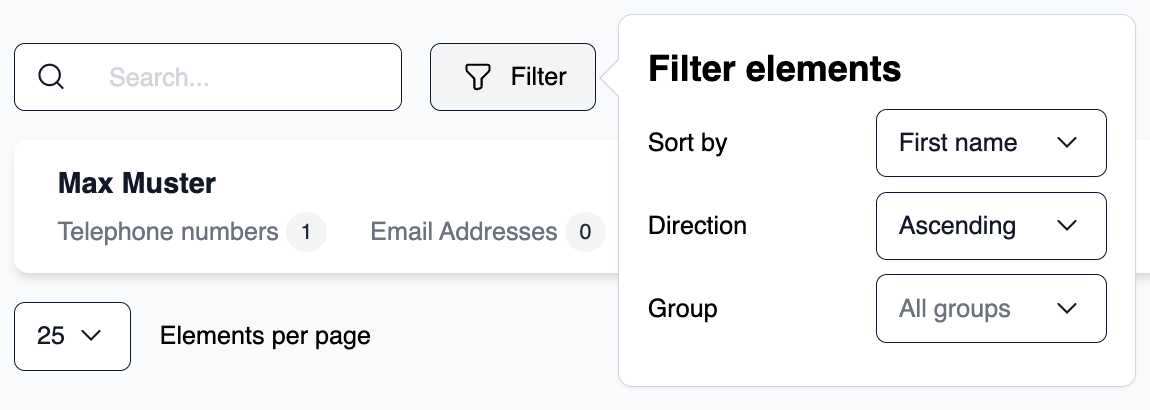
Create and Edit a Contact

To create an entry, click "Add New Contact" in the upper right corner to open the corresponding form.
Please enter the first and last name and fill in the desired information for the contact.
To change your information later, simply click “Edit” to the right of the contact.
Note: Please note that the maximum number of contacts you can manage is limited to 5,000 entries. This applies to both manually created contacts and those imported via .csv and/or vCard.
Import Contacts
The "Import New Contacts" option allows you to import contacts from a vCard or CSV file.
You can find the required data structure for CSV files in our sample file.
Be careful of automatic formatting!
Programs like Microsoft Excel or Apple Numbers often automatically alter cell formatting. In the default settings, leading zeros are usually removed from phone numbers, which renders the information useless. Adjust the format yourself or use a text editor that’s as neutral as possible—one that doesn’t alter the data on its own.
Select UTF-8 text format
Please be sure to save the CSV file in UTF-8 format. Different text formats can lead to transmission errors and render the file unusable.
Data Structure
A contact can have multiple contact options. These always consist of three elements:
- Type (email, phone number, or address)
- Information (e.g., the phone number)
- Category (Home, Office, Fax, Mobile, etc.)
Please make sure that all elements are filled out completely for each contact method. For a better understanding, you can refer to this screenshot and the sample file in the import window.

Export Contacts
This option allows you to download contacts as a vCard or CSV file.
The export function appears after you click “Bulk Edit.” You can then select all or a subset of entries and click “Export Selected Contacts.”
Delete Contact
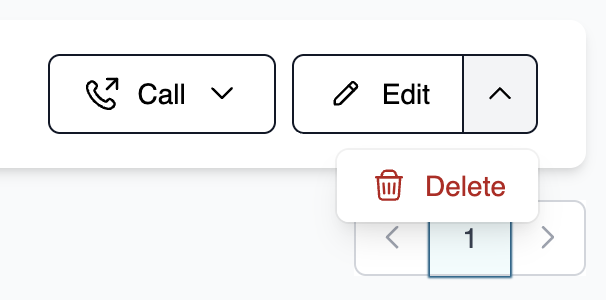
Batch editing also allows you to delete contacts. Alternatively, click the small arrow to the right of "Edit" in the row, and the "Delete" button will appear.
Call contacts with a single click (Click2Dial)

With the Click2Dial feature, you can call a contact in your phonebook with just one click. The feature automatically establishes the connection through a device connected to the Cloud PBX. All you have to do is pick up the handset or put on your headset.
Click “Call” next to the contact and select the phone number you want to call.
You can then choose which device from the Cloud PBX you want to use to make the call. Once you’ve confirmed your selection, the call will ring on that device. After you answer the call, the connection to the contact will be established.
Personal Contacts and Click2Dial with OfficeDesk Accounts
The options available to an OfficeDesk user are initially identical to the settings of the administrator account. The meaning and functionality of the buttons are also the same.
The only difference is that the contacts created here are valid and visible only for that individual user account. If an OfficeDesk user attempts to delete a central contact, it is simply hidden from their view but is not deleted from the central phone book.
Another restriction for OfficeDesk users is that, in the Click2Dial settings, they are only shown the devices assigned to them by the administrator.